On the canvas · 5 MIN READ
Generate media on the canvas
Turn a card into a generation, review its settings and credit estimate, then work with the result.
Before you start
Open a project you can edit. Your studio needs enough credits for the generation, and an available model must support the media type you want to create. Available models and settings can change.
1. Start with a focused card
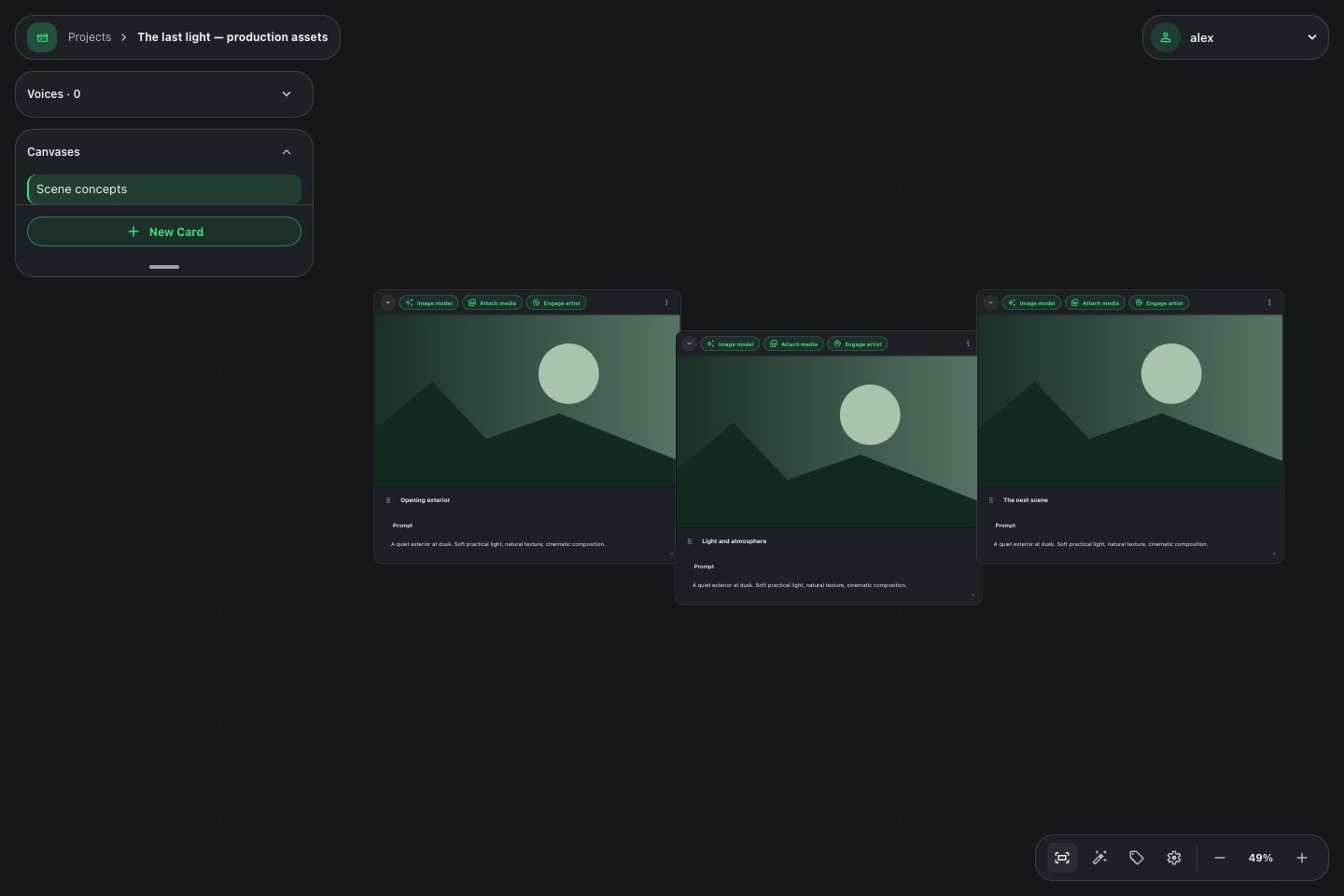
Add a card and write a prompt that describes one useful result. For an image, describe the subject, composition, lighting, and visual treatment. Keep your instructions specific enough to evaluate the result.
Add relevant reference media where the selected model supports it. Check any model-specific limits shown by the app.
2. Choose a model and settings
Open the card’s generation controls and select the model you want to use. Review the available settings, such as resolution and aspect ratio. Video models can also offer duration and other controls.
The available options depend on the model. Review them again when changing models rather than assuming the same settings apply.
3. Check the estimate, then generate
Read the displayed credit estimate before selecting Generate. If the studio balance is too low, ask a studio owner or admin to review plans and credit packs in studio billing.
After submitting, follow the generation status in the workspace. Avoid submitting the same request again just because it is taking time. If it fails, read the message and address the cause before retrying.
4. Review and refine
Open the completed result and compare it with the original idea. Refine the prompt or settings for your next attempt. Keep useful outputs and references near the cards that explain them.
You can also find the project’s media in Assets, where you can browse, tag, and download it.
What you should have
A completed result in the project and a clear next step for refining it. When you find a useful structure, save it as a reusable workflow.